Enable location to play outdoorsiPhone, iPad and Android, in one minute
Outdoor mode needs your location to display the map. If the GPS map doesn't appear, here's how to allow location.
Allow location
Accept the browser's request, or turn it on in your phone's settings.
The GPS map appears
Your location shows up and the investigation trail takes shape around you.
Follow the clues
Move from one place to the next to advance the investigation in the field.
Why the game needs your location
Jack & Mani's outdoor mode turns real places in your city into a life-size investigation. The game uses your phone's location to display the map, place you, and guide you from one clue to the next. Without location permission, the GPS map stays empty and the trail can't start. Allowing it takes less than a minute and works directly in the browser, with nothing to install.
Is your location tracked or stored?
No. Your location is only used to display the map on your device and to detect when you reach an investigation location. It is neither kept to track you nor sold. You stay in control: permission can be removed at any time in your phone's or browser's settings.
In most cases, there's nothing to set up
When you start an outdoor investigation, the browser shows a request to access your location. Tap Allow and the map appears right away, that's it. The steps below, for iPhone then Android, are only needed if the map still doesn't show up, for example if you had declined that request or if your phone's location is turned off.
If the map doesn't show up, on iPhone and iPad (Safari)
Open Settings then Privacy
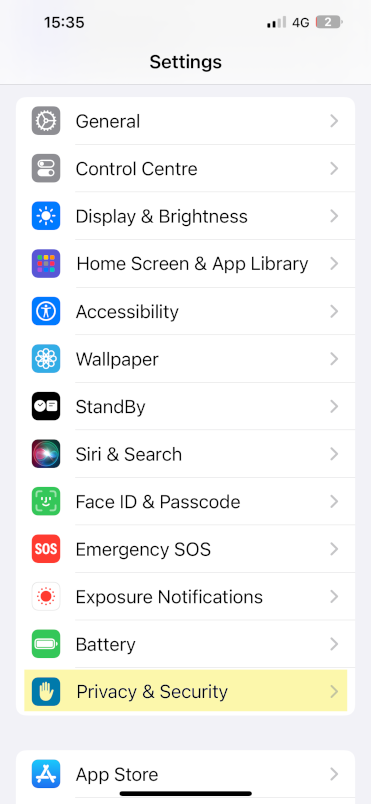
If the GPS map doesn't show up, location isn't allowed yet. On the home screen, open the Settings app and tap Privacy & Security.
Go into Location Services
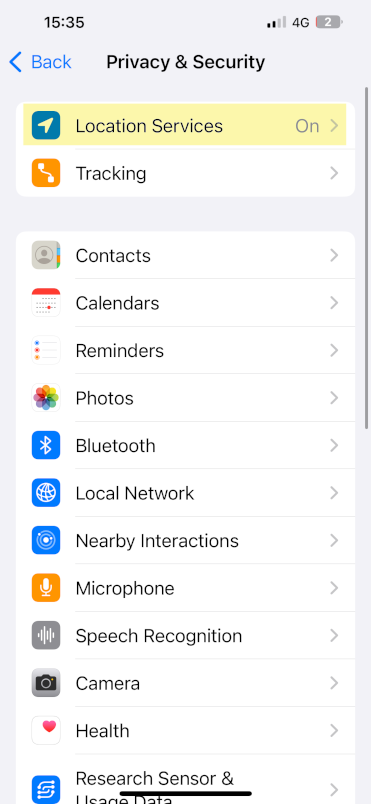
Open Location Services and check that the switch at the top of the screen is turned on.
Find Safari in the list
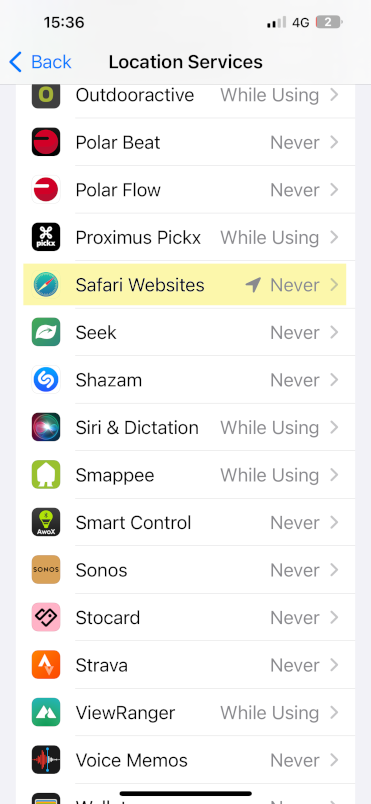
Scroll down to Safari, your browser. If the permission says Never, tap it to change it.
Choose While Using the App
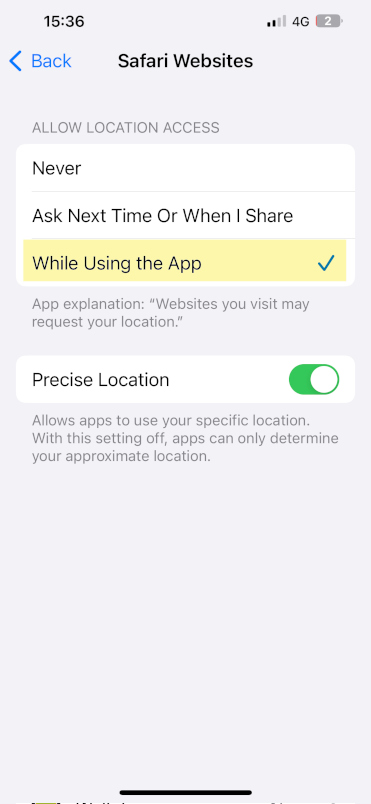
Select While Using the App. Reopen the game: the GPS map appears and the investigation can begin.
If the map doesn't show up, on Android (Chrome)
- 1
Open Chrome, tap the three-dot menu in the top right, then Settings.
- 2
Go to Site settings, then Location, and check that it is allowed.
- 3
Also open your phone's Settings, then Location, and turn on GPS.
- 4
Go back to the game, reload the page and accept the location request.
Still no GPS map?
Stand outdoors or near a window: GPS needs a signal to lock in.
Reload the page and accept the browser's location request when it appears.
If you had declined it, reset the site's permission in the settings, then try again.
Wait a few seconds: the first GPS point can take a moment to appear.
Also worth reading
Ready to explore?
Location is enabled. Start an outdoor investigation and let the city become your investigation ground.
Play outdoorsEducation
Investigations
Outdoors